
Poetry Windows Install Guide: Setup, PATH & Fixes 2026
You typed poetry into a black terminal window, hit enter, and got a wall of red text calling it “not recognized.” Annoying, right? Here’s the thing: it’s not you. It’s a missing folder path, and half the internet has hit this exact wall during a Poetry window setup. Poetry is the dependency manager built for Poetry Python projects, the thing that replaces your messy pile of requirements.txt files and manual virtual environments with one config file and one command-line tool that actually behaves.
This guide covers the whole mess, start to finish. A full Poetry Windows installation from a bare terminal. The PATH fix that solves that red text error nine times out of ten. A single command to check everything actually worked. And how to rip it out cleanly if you ever change your mind. Windows 10, Windows 11, plain PowerShell, WSL—it doesn’t matter; it’s all in here. Fifteen minutes from now you’ll have a working setup and, honestly, enough understanding to fix it yourself the next time something breaks.
What Is Poetry and Why Windows Developers Use It
Poetry does two jobs: dependency management and packaging, both for Poetry Python projects. Forget stitching pip, virtualenv, a setup.py file, and a stray requirements list into something coherent. Poetry folds all of it into one pyproject.toml file and a single CLI. It resolves package versions and writes a lockfile so your coworker’s laptop installs the exact same thing yours did, and it can build and ship your project to PyPI whenever you’re ready.
For Windows users specifically, this fixes a very particular headache. Inconsistent environments. The classic “works on my machine” excuse is usually just dependency drift wearing a disguise, and a clean Poetry installation kills most of that by isolating each project on its own automatically. No more manual setup every time you start something new.
Why Poetry Beats the Old pip and venv Combo
Pip, venv, requirements.txt. Still works. Still a pain. You’ve got to remember to freeze dependencies, activate the right environment, and hope nobody committed a broken requirements file at 11pm on a Friday. Poetry crushes that whole chain into a declarative file plus a lockfile, and that lockfile is the actual guarantee, the thing that makes a build behave the same on your Windows laptop as it does on some Linux server three states away.
Common Reasons Windows Users Search for This Setup
Three scenarios, roughly. Somebody cloned a repo that already runs on Poetry and just needs it working locally. Somebody read a tutorial pushing Poetry over plain pip and wants to try it. Or, and this is probably most of you, somebody already attempted the install and got smacked with “Poetry is not recognized as an internal or external command.” All three, covered below.
System Requirements Before You Install
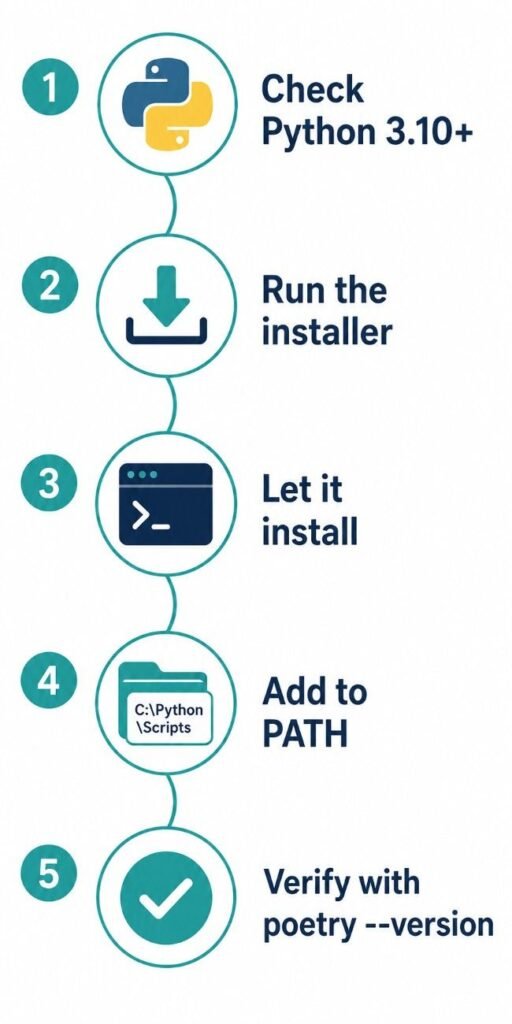
Before the poetry download, a quick gut check on your machine. Poetry needs Python 3.10 or newer. It’s cross-platform too, so whatever TOML you build on your Windows desktop identically behaves later on a MacBook or a Linux box.
Checking Your Python Version
Pop open PowerShell or Command Prompt, run this:
python --version
Anything under 3.10? Grab the current release from the official Python website first. One more wrinkle: if Python came from the Microsoft Store instead of the standard installer, remember that it tweaks a command later on.
Comparison: Installer vs pipx vs Manual pip Install
Three supported paths on Windows. Here’s the breakdown.
| Installation Method | Best For | Handles Updates | Isolation Level |
|---|---|---|---|
| Official installer script | Most individual developers | Yes, via poetry self-update. | High, dedicated virtual environment |
| pipx install poetry | Developers already using pipx for CLI tools | Yes, via pipx upgrade poetry | High, dedicated virtual environment |
| Manual pip and venv | Advanced users, CI pipelines needing full control | Manual, must reinstall | High if kept separate from project env |
Most people reading this want the official installer. That’s next.
How to Install Poetry on Windows Step by Step
The real core of how to install Poetry on Windows is straight from the installer script the Poetry team maintains. Fresh machining or rebuilding after wiping an old mess—same steps either way.
Step 1: Open PowerShell
Start menu, type “PowerShell,” and open it. No administrator rights needed here, a nice change of pace from the old global install methods that demanded elevated permissions for everything.
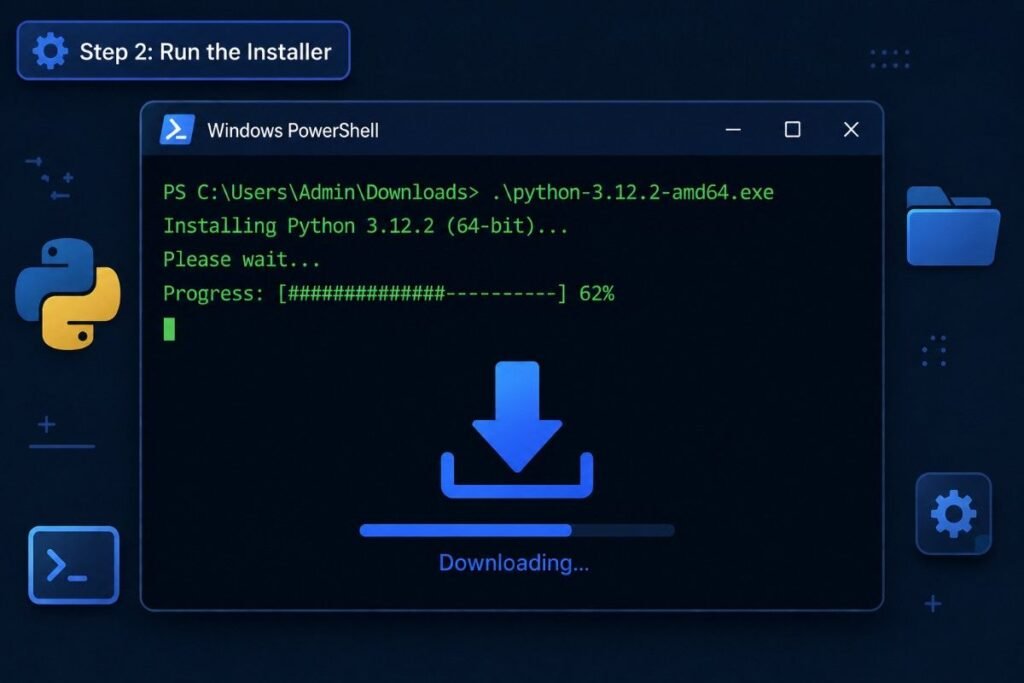
Step 2: Run the Official Poetry Windows Download Command
Paste this in, exactly as written:
(Invoke-WebRequest -Uri https://install.python-poetry.org -UseBasicParsing).Content | py -
One line. The entire Poetry Windows download and install is done in a single move. It grabs the official installer script and runs it through the PyInstaller. Installed Python through the Microsoft Store instead? Swap “py” for “python” in that command. The store version doesn’t register the launcher the usual way, and this trips people up constantly.
Step 3: Let It Do Its Thing
The script builds Poetry its own isolated virtual environment so it never steps on your other Python packages. That’s on purpose. Poetry’s own team is pretty firm on this: never install it inside the same environment as the project it manages. Do that and you risk mangling its dependencies without realizing why things suddenly broke.
Step 4: Note the Install Location
Default landing spot on Windows:
%APPDATA%\pypoetry
Write it down somewhere. You’ll want it later for troubleshooting or just poking around.
Alternative Method: Installing With pipx
Already living the pipx life for other CLI tools? The same move applies:
pipx install poetry
Bonus here: pipx handles your upgrades and uninstalls automatically from here on out through pipx upgrade poetry and pipx uninstall poetry.
How to Add Poetry to PATH on Windows
So the poetry download finished. You type poetry. Nothing but an error. Classic. This is the single most common snag in the entire process, and it happens because the folder holding the poetry executable isn’t part of your system’s PATH yet. Here’s how to add poetry to PATH windows, the actual fix.
Where Poetry’s Executable Actually Lives
The installer drops a poetry wrapper right here:
%APPDATA%\Python\Scripts
Went the pipx route instead. Location might shift slightly, though pipx usually sorts its own PATH entry out on its own.
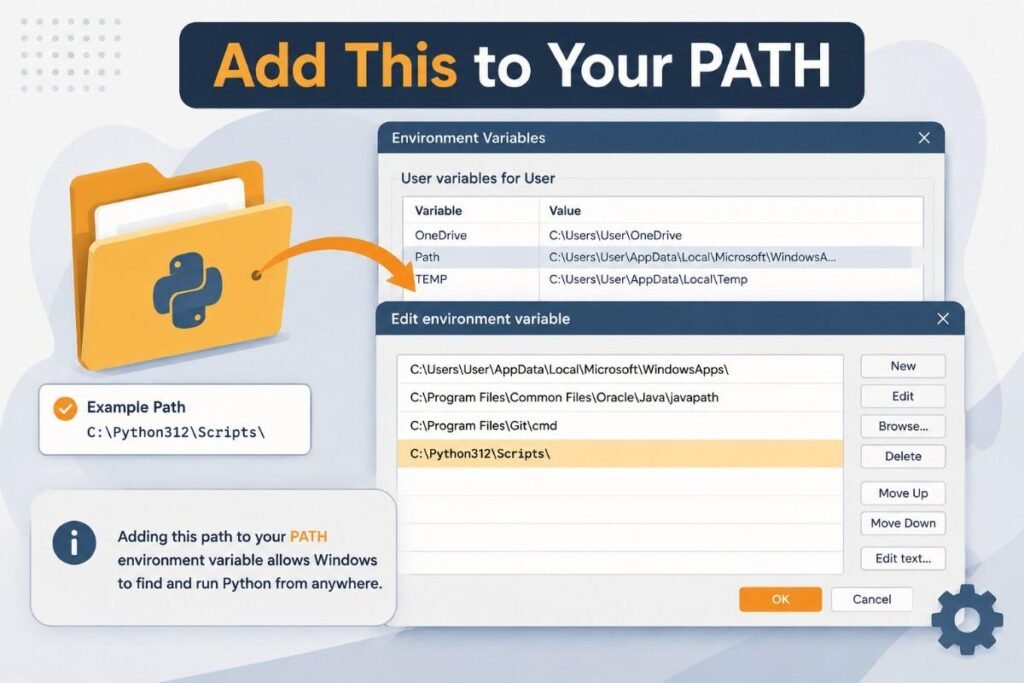
Step by Step: Add Poetry to PATH Windows
- Windows key, search “Edit the system environment variables,” and open it.
- Click Environment Variables at the bottom of the window.
- Under User variables, click Path, then Edit.
- Click New, paste in %APPDATA%\Python\Scripts, and swap in your actual username if needed.
- Click OK everywhere. Save it.
- Close PowerShell entirely. Reopen it. Old sessions won’t magically see the update, ever.
How to Add a System Path to Poetry Using PowerShell Directly
Not a fan of clicking through settings menus? One PowerShell command gets you there instead, a faster answer to how to add a system path to poetry:
[Environment]::SetEnvironmentVariable("Path", $env:Path + ";$env:APPDATA\Python\Scripts", "User")
Restart PowerShell after. It won’t take effect until you do.
Confirming the PATH Update Worked
Reopen your terminal, run:
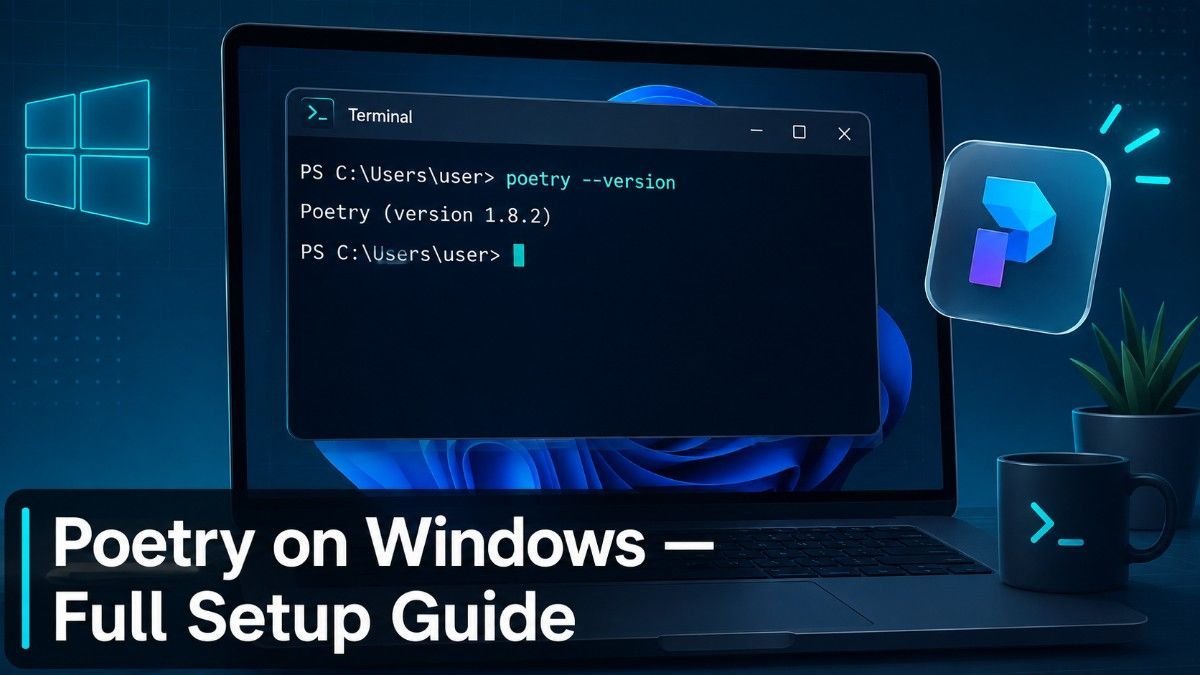
poetry --version
Something like Poetry (version 2.4.0) pops up? Good. Your Poetry Windows PATH is set, and you’re clear to move on.
How to Find Where Poetry Is Installed on Windows
Sometimes you just need the exact file location. Troubleshooting, scripting, or plain curiosity about how to find where poetry is installed on Windows, whatever the reason. Poetry keeps its files tidy and separate from your regular Python packages, so this isn’t some archaeological dig.
Default Installation Directories
Standard Windows setup: Poetry’s core files sit here:
%APPDATA%\pypoetry
The actual executable your terminal calls when you type poetry? Buried inside the virtual environment Poetry built for itself:
%APPDATA%\pypoetry\venv\Scripts\poetry
You can call that full path directly, even with zero PATH configuration. Just clunkier for daily use.
Using Command Prompt to Locate Poetry
Fastest check: Command Prompt, run:
where poetry
That spits out the exact file Windows fires up when you type poetry. Handy if you suspect two installs are fighting each other, say, one from pipx and one from the official script, quietly stepping on each other’s toes.
If You Installed Python Through the Microsoft Store
Store installs register paths differently. Expect something closer to the following:
%LOCALAPPDATA%\Packages\PythonSoftwareFoundation.Python.3.12_qbz5n2kfra8p0\LocalCache\Roaming\Python\Scripts
Version number and suffix will vary machine to machine. Don’t guess; just run to poetry and get the real answer.
Verifying, Updating, and Troubleshooting Your Installation
Poetry install done, PATH sorted. A couple habits keep it from breaking on you later.
Verifying the Installation
Check with:
poetry --version
Want poetry (version 2.4.0) or something similar staring back at you. Confirms the current release is actually running.
Updating Poetry Safely
The official installer lets Poetry update itself:
poetry self update
One catch, though. Self-update gets flaky on Windows specifically, for reasons nobody’s fully nailed down. Fails on you? Just rerun the original installer command. It replaces the old version cleanly, no drama.
Common Windows Installation Errors and Fixes
Error: poetry is not recognized as an internal or external command.
Almost always a skipped PATH step. Or a terminal window that’s just old and hasn’t been restarted. Close it, reopen it, and try again.
Error: SSL certificate verification failed during download.
Corporate network, most likely, or antivirus software poking its nose into HTTPS traffic. A different network fixes it fast. Otherwise, IT department certificate exceptions to that conversation.
Error: Multiple Python versions causing confusion.
Several Pythons installed? Use the py launcher with a version flag, py -3.11 for example, and force it to use the interpreter you actually want.
How to Uninstall Poetry on Windows
Sometimes you just want it gone. Version switch, clean slate, or whatever the reason, here’s how to uninstall Poetry on Windows handled properly, depending on how you installed it originally.
Uninstalling an Official Installer Version
Rerun the installer script in PowerShell, uninstall flag attached:
(Invoke-WebRequest -Uri https://install.python-poetry.org -UseBasicParsing).Content | py - --uninstall
Clears the isolated virtual environment and the wrapper script both. No orphaned junk left sitting in your site packages.
Uninstalling a pipx Version
Went the pipx route? One command:
pipx uninstall poetry
Manually Removing Leftover PATH Entries
After uninstalling, circle back to edit the system environment variables, open Path, and delete the %APPDATA%\Python\Scripts entry. Assuming nothing else on your machine still needs it, double-check that first.
Poetry the Tool vs Poetry the Art Form
Quick detour. The word “poetry” means two wildly different things online, and search engines aren’t great at sorting that out. Everything above is the Python tool. But wait, there’s also a chance you landed here chasing what is a window moment in poetry, the literary kind. That phrase describes a vivid, self-contained image or scene inside a poem, something that works almost like a small frame the reader looks through, often carrying more weight than the lines surrounding it.
That literary side has its own set of questions, entirely separate. Writers polishing their craft often ask, “Why is poetry important as a way of expressing something, since it compresses emotion into fewer words than almost any other writing form manages to pull off?” Others eventually chase down how to get poetry published in literary journals and small presses or how to publish a poetry collection independently through print-on-demand routes. Different world, same word, worth the one-paragraph clarification.
CONCLUSION
Getting poetry windows working boils down to three moving parts. Run the official installer. Get your Poetry Windows PATH configured right. Know where to look when something inevitably goes sideways. Nail those, and Poetry handles the rest: dependencies, virtual environments, and packaging, all through one config file instead of five scattered tools fighting each other.
start. Quick recap: three things. Check if your Python version is 3.10 before you even start the install. If poetry isn’t recognized afterward, it’s a PATH problem almost every single time, not a broken install. And whatever script installed Poetry can also remove it cleanly if you ever need a genuinely fresh start. Useful? Bookmark it for your next machine setup. Once you’re running, the official Poetry documentation covers the deeper dependency management stuff. For community troubleshooting, the Poetry GitHub repository and the active Stack Overflow tag are both worth a bookmark too.
FAQ: People Also Ask About Poetry on Windows
Is Poetry free to install on Windows?
Yep. Open source, zero cost, whether you’re using it on a side project or something commercial. No catch.
Do I need administrator rights for a Poetry Windows installation?
user-specific: Nope. Everything lands in a user-specific folder. A standard account handles the whole install, no elevated permissions required.
Why does my terminal say poetry is not recognized?
The poetry executable’s folder hasn’t hit your PATH yet. Fix it with the steps above and restart your terminal, and it will be solved. Every time, basically.
Can I install Poetry without using PowerShell?
Sure, pipx works fine from the command prompt with pipx install poetry. Or go manual with pip inside a dedicated virtual environment if you want more control over the process.
Does Poetry work with Python installed from the Microsoft Store?
Yes, a small tweak is required. Swap “py” for “python” in the install command, and expect slightly different file paths than a standard install would give you.
How do I check which version of Poetry I have installed?
Run poetry –version. Prints the version number, doubling as confirmation your PATH is set up right.
What is the difference between poetry install and the Poetry installer script?
The installer script sets up Poetry itself, once, on your machine. Poetry install is a completely different animal; run it inside an actual project to pull in that project’s own dependencies from pyproject.toml.
How do I completely remove Poetry along with cached files?
Run the installer with –uninstall. Then manually clear out the %APPDATA%\pypoetry folder if anything’s still hanging around, and remove that PATH entry you added earlier.